How to move your music library from Android to iPhone
Apple’s Switch to iOS app carries contacts, photos and messages. A folder of MP3 or FLAC files is exactly what it does not carry. Here is the way to bring it across intact.

Why the migration tools skip your music
Android treats music as files. There is a folder — usually Music, sometimes a card, often nested by artist and album — and any player on the phone reads it. That is why it was easy to live with, and it is also why the transfer tools ignore it: they move the data owned by an account, and your music files are owned by nothing.
On the iPhone the default answer is the Music app, which wants a library rather than a folder, and would rather that library came from a subscription. People arriving from Android hit this on day one: the files copy onto the Mac fine, and then there is no obvious way onto the phone that does not involve converting them and handing them to iTunes.
The fix is to keep treating music as files on the iPhone too. Move the folder tree across once, let a player read it, and the way you used your library on Android is the way it works here.
Step by step
Bringing the folder across
- 01
Copy the music folder off the Android phone first
Plug it into a computer and let it mount, or use whatever file transfer you already use. Copy the whole Music folder rather than picking albums — you want the folder tree, because that is where your artist and album structure lives if some files are missing tags.
- 02
Take five minutes to check the tags
On the computer, look at a handful of albums. Anything ripped years ago on Windows may have a stray encoding or a missing album artist. Fixing it now, in a desktop tag editor, is much faster than doing it later on a phone — although bMusic can edit and write tags back into the file if something slips through.
- 03
Install bMusic on the new iPhone
iOS 18.0 or later, iPhone and iPad from the same download, and every part of it works for 15 days from the day you install it. That is deliberately enough time to move the library and live with it for a fortnight.
- 04
Send the folder over Wi-Fi
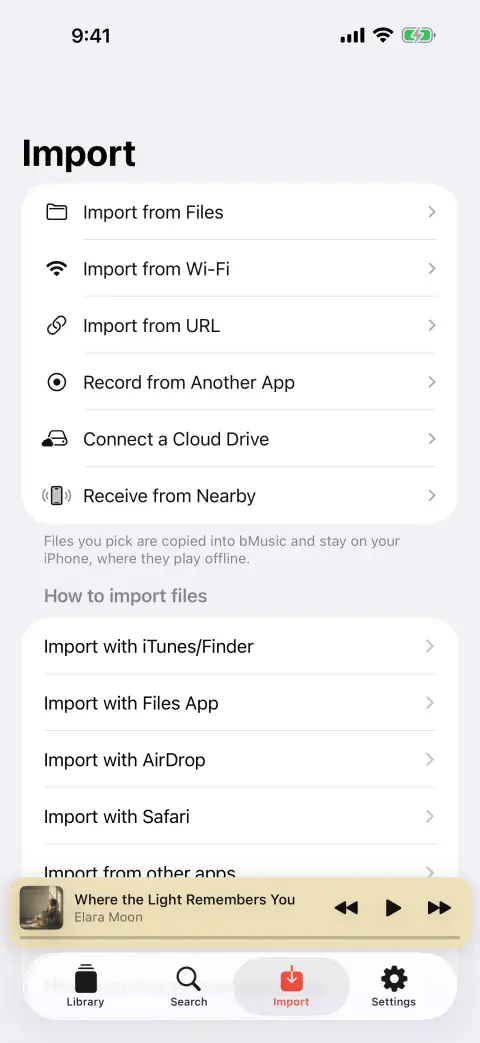
Choose Import from Wi-Fi on the phone, open the address it shows on the computer, and read the six-digit code with the phone’s camera. Then drag the folders into the browser. Nothing is installed on the computer and nothing goes through the internet — the files move across your own network.
- 05
Let it rebuild the library
Tags are read from every file — MP3, AAC, M4A, ALAC, FLAC, OPUS, WAV, AIFF all carry them — and everything is filed under Music/Artist/Album with its cover art. Albums that arrived split across folders can be merged, and a compilation that grouped wrong can be separated.
No computer in the middle? bMusic can also read directly from your own WebDAV server or NAS, and it takes files from AirDrop, the Files app and direct links.
What comes across, and what does not
- Files, tags and cover art
- Every format Android players handle day to day — MP3, AAC, M4A, ALAC, FLAC, OPUS, WAV, AIFF — imports with its tags and embedded art intact. Nothing is re-encoded on the way in.
- Your folder structure
- Artist and album folders are rebuilt on the phone, so a library organised by hand stays organised by hand rather than being flattened into one list.
- Not your play counts
- Those lived in whichever Android player you used and are not in the files. bMusic starts counting from zero — the one thing worth knowing before you start rather than after.
- Not .m3u playlist files
- Playlist files are not imported. Rebuild the handful you actually use by dragging songs in bMusic; it is quicker than fixing the paths inside an .m3u that came from a different device.
FAQ
Android to iPhone: the usual questions
Does Switch to iOS move music files?
Can I go straight from the Android phone to the iPhone?
Will my FLAC files work on the iPhone?
How long does a big library take?
Do I need an account?
Other guides
Play FLAC on an iPhone
The iPhone decodes FLAC and always has. Getting a FLAC file onto it is the part Apple never made easy.
Read the guidePut a ripped CD on an iPhone
You ripped it losslessly on purpose. Getting it onto the phone should not undo that.
Read the guideWhen streaming takes a song away
The album is greyed out and the playlist has a hole in it. Owning the file is the only fix that lasts.
Read the guideYour own music in the car
A tunnel, a data cap or a rural road, and the streaming app stalls. Files on the phone never do.
Read the guideLyrics for your own files
Lyrics apps look a song up in a catalogue. The rip, the bootleg and the demo are not in it — so the words have to come from the recording.
Read the guideKaraoke and practising a part
Take the voice out, move the key, loop the bar you keep missing and slow it down — on a song you own, on the phone.
Read the guideBring your own music
Every part of bMusic works for 15 days from the day you install it, with nothing held back. Send one album across and hear it on your own headphones.
iPhone, iPad and Mac · iOS 18.0 or later · MP3, AAC, M4A, ALAC, FLAC, OPUS, WAV, AIFF