Karaoke and practice on an iPhone: vocals out, key moved, bar looped
Learning a song off a record means playing the same four bars twenty times, slower than they were recorded, sometimes in a different key, and often without the original singer in the way. Here is how to do all of that to a file you own, on a phone, with nothing uploaded anywhere.

Why the usual tools are the wrong shape
The tools built for this are either desktop software or a subscription that only works on its own catalogue. Neither fits the moment it is actually needed — on a train, in a rehearsal room, in the twenty minutes before a lesson — and the catalogue-shaped ones cannot touch the recording you were given by the person who wrote it.
Backing tracks have the same problem from the other end. A karaoke version exists for a few thousand songs, is a different arrangement from the one you learned, and often in a different key from the one you sing. The recording you want to practise against is the record itself.
What a player can do instead is process the file it is already playing: cancel what sits in the middle of the stereo image, shift the pitch without dragging the tempo with it, slow the whole thing down without dropping it an octave, and loop a section precisely enough to be useful. All of that is arithmetic on audio the phone already has, so it needs no catalogue, no account and no connection.
Step by step
Setting up a practice session
- 01
Get the song onto the phone
Any of the usual ways in: Wi-Fi transfer from a computer, AirDrop, the Files app, a link or your own WebDAV server. Lossless is worth using here — MP3, AAC, M4A, ALAC, FLAC, OPUS, WAV, AIFF all import untouched, and vocal cancellation has more to work with when the stereo image has not been through a low bitrate.
- 02
Open the effects page from the player
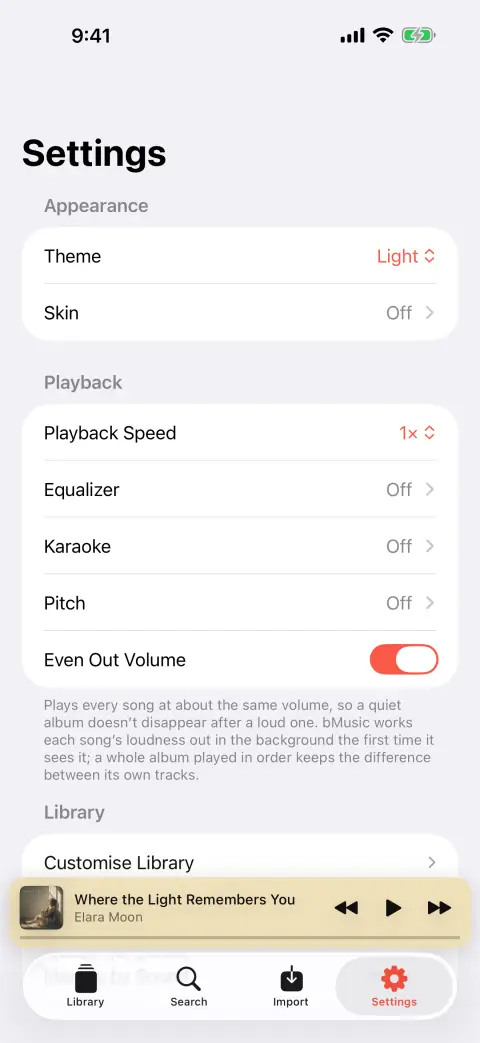
Start the song and tap the effects button on the Now Playing bar. Equaliser, Karaoke and Pitch are three tabs of the same page, so everything below happens without leaving the song that is playing.
- 03
Take the voice out, as far as it will go
Karaoke cancels the centre of the stereo image between 150 Hz and 10 kHz, where a lead vocal usually sits, and leaves the kick drum and the bass alone. The strength is a slider rather than a switch, because how much can come out before the record starts sounding hollow depends on the mix.
- 04
Move the key and slow it down
Pitch shifts up to six semitones either way and leaves the tempo where it was; speed runs from half to double and leaves the pitch where it was. Both are useful on their own — a song a tone too high to sing, or a solo too fast to hear — and they compose.
- 05
Loop the bar you keep missing
Set an A–B loop around the passage and it repeats until you stop it. That, plus half speed, is most of what practising a part actually is. When it is time to hear yourself, the sing-along recording captures your take against the backing on the same clock, so the two line up when you play it back.
A mono recording has no middle to cancel, and bMusic says so instead of offering a slider that does nothing. Everything else on the page still works on it.
What the phone is doing
- Cancelling, not separating
- The vocal is removed by subtracting what is common to both channels in the range it lives in. It is honest arithmetic with an honest limit: a heavily processed or doubled vocal survives it, and reverb usually does too.
- Pitch without tempo, tempo without pitch
- A phase vocoder moves the key up to ±6 semitones with the timing intact, and the speed control runs 0.5–2× without dropping the singer an octave. Practising a part in your own key is a different exercise from practising it slowly, and neither should force the other.
- A room, not a track
- The ten-band equaliser and your headphones’ own correction curve are on the same page, so what you practise against sounds like the record rather than like a phone.
- Everything stays on the device
- No stems are uploaded, no account is involved, and it works on a song nobody else has heard. An instrumental you export is cached by content, so a song is only ever processed once.
FAQ
Karaoke and practice: the usual questions
How good is the vocal removal, really?
Does changing the key make it sound like a chipmunk?
Can I record myself singing along?
Does any of this need a connection?
Does it change my file?
Other guides
Play FLAC on an iPhone
The iPhone decodes FLAC and always has. Getting a FLAC file onto it is the part Apple never made easy.
Read the guideMove a library off Android
Switch to iOS moves your photos and messages. The folder of music files is the part it leaves behind.
Read the guidePut a ripped CD on an iPhone
You ripped it losslessly on purpose. Getting it onto the phone should not undo that.
Read the guideWhen streaming takes a song away
The album is greyed out and the playlist has a hole in it. Owning the file is the only fix that lasts.
Read the guideYour own music in the car
A tunnel, a data cap or a rural road, and the streaming app stalls. Files on the phone never do.
Read the guideLyrics for your own files
Lyrics apps look a song up in a catalogue. The rip, the bootleg and the demo are not in it — so the words have to come from the recording.
Read the guideBring your own music
Every part of bMusic works for 15 days from the day you install it, with nothing held back. Send one album across and hear it on your own headphones.
iPhone, iPad and Mac · iOS 18.0 or later · MP3, AAC, M4A, ALAC, FLAC, OPUS, WAV, AIFF